Excel shortcut to insert a row (and delete one) on Windows and Mac
Insert a row in Excel with Shift + Space, then Ctrl + Shift + +. Delete one with Ctrl + -. Mac keys, inserting several rows at once, and what to do when the shortcut opens a dialog instead.
By The Applio team4 min read
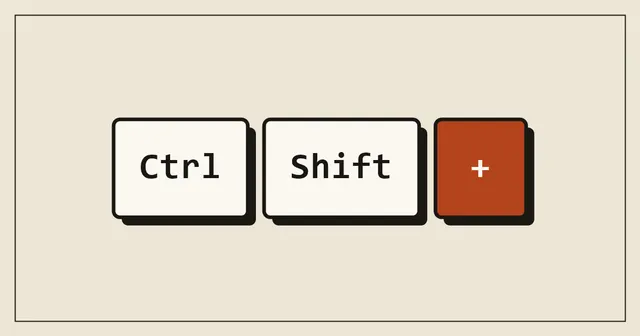
The fastest way to insert a row in Excel on Windows is two shortcuts in a row: Shift + Space to select the row the cursor is on, then Ctrl + Shift + + to insert a new, empty row above it. To delete the row instead, select it the same way and press Ctrl + -. On a Mac, select the row with Shift + Space and press Ctrl + Shift + =.
Quick reference
| What you want | Windows | Mac |
|---|---|---|
| Select the whole row | Shift + Space | Shift + Space |
| Select the whole column | Ctrl + Space | Ctrl + Space |
| Insert row (or column) above / left of the selection | Ctrl + Shift + + | Ctrl + Shift + = |
| Delete the selected row (or column) | Ctrl + - | Cmd + - |
| Repeat the last action | F4 or Ctrl + Y | Cmd + Y |
On Windows, the plus key can be the one on the number pad, in which case you do not need Shift: Ctrl + + on the number pad does the same thing.
Insert one row, step by step
- Click any cell in the row that should move down. The new row will appear above it.
- Press Shift + Space. The whole row turns grey, which means the row itself is selected, not just the cell.
- Press Ctrl + Shift + + (Mac: Ctrl + Shift + =).
The new row takes the formatting of the row above it. A small brush icon appears next to it, where you can switch to the formatting of the row below or clear the formatting.
Insert several rows at once
Select as many rows as you want to insert, then use the same shortcut. To add five rows above row 10:
- Click a cell in row 10.
- Press Shift + Space to select the row.
- Hold Shift and press Down arrow four times, so rows 10 to 14 are selected.
- Press Ctrl + Shift + +.
Excel inserts exactly as many rows as you selected. For rows that are not next to each other, hold Ctrl (Mac: Cmd) and click the row numbers on the left, then press the shortcut once. Excel adds one row above each selected row.
Another quick way is to insert one row and then press F4 as many times as you need. F4 repeats the last action, so each press adds another row.
Delete a row
- Click a cell in the row.
- Press Shift + Space to select it.
- Press Ctrl + - (Mac: Cmd + -).
The rows below move up to close the gap. Deleting a row also removes anything in that row outside your visible area, such as notes in column Z, so scroll right first on a wide sheet.
Why the shortcut opens a dialog box instead
If you press Ctrl + Shift + + with only a cell selected, Excel does not know whether you want a new row, a new column or shifted cells, so it opens the Insert dialog. You can pick Entire row with the arrow keys and press Enter, but selecting the row first with Shift + Space skips the dialog completely.
The same applies to Ctrl + -: with only a cell selected it opens the Delete dialog.
When Shift + Space selects only part of the row
Inside an Excel table (one created with Insert, Table), Shift + Space selects the row of the table, not the whole worksheet row. That is usually what you want: the inserted row becomes part of the table, and formulas in calculated columns fill into it automatically. Press Shift + Space a second time to select the full worksheet row.
Insert a row with the mouse or the ribbon
- Right-click a row number on the left and choose Insert.
- On the Home tab, in the Cells group, choose Insert, then Insert Sheet Rows.
Both insert the row above the selected one, the same as the shortcut.
Common questions
How do I insert a row below instead of above?
Excel always inserts above the selection. To get a new row below row 10, select row 11 and insert there.
Why are the shortcuts different on a Mac?
Excel for Mac uses Ctrl + Shift + = for inserting cells, as listed in Microsoft's own shortcut reference. Some Mac users report that Cmd + Shift + + also works on their version. If neither works for you, right-click the row number and choose Insert, which works on every version.
Does this work in Google Sheets?
Google Sheets uses different keys. Select the rows and press Ctrl + Alt + = (Mac: Cmd + Option + =) to insert rows above, and Ctrl + Alt + - to delete them. Our Google Sheets shortcuts cheat sheet has the full list.
For the rest of Excel's time-savers, such as selecting to the last filled cell and filling a formula down, see the Excel shortcuts cheat sheet.
Written by
The Applio team
We build booking software for appointment-based businesses: the Applio platform and the BarberSamir app on the App Store. We write about the tools and habits that save us time. More about us
Keep reading
Shortcuts
Flash Fill in Excel: Ctrl + E splits names, emails and dates for you
Type one example, press Ctrl + E, and Excel fills the rest of the column. How to use Flash Fill to split names, join columns, pull out parts of emails and reformat phone numbers, and what to do when it does not work.
· 6 min read
Shortcuts
Strikethrough in Google Sheets: the shortcut and three other ways
Strikethrough in Google Sheets is Alt + Shift + 5 on Windows and Cmd + Shift + X on a Mac. Here is how to apply it to cells or part of a cell, remove it, and cross out rows automatically.
· 5 min read
Shortcuts
Paste values only in Google Sheets: shortcut and menu
Ctrl + Shift + V pastes values only in Google Sheets (Cmd + Shift + V on a Mac): the result of a formula without the formula, or text without its colours and fonts. Plus the other Paste special options.
· 4 min read