Excel shortcuts cheat sheet: 45 shortcuts to work twice as fast
Excel keyboard shortcuts: Ctrl + 5 for strikethrough, Alt + = for AutoSum, Ctrl + ; for today's date, plus selection, formatting and filters. Windows and Mac, free PDF.
By The Applio teamUpdated 7 min read
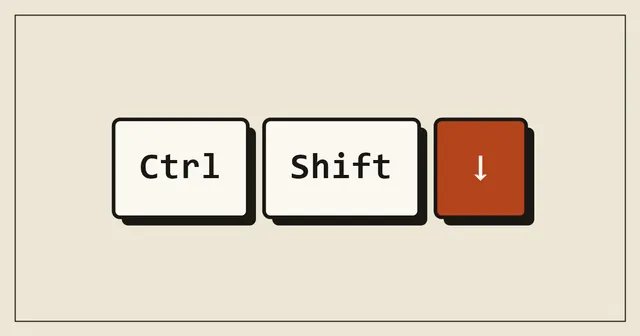
Excel is where keyboard shortcuts pay off the most, because spreadsheet work is so repetitive. Selecting a column of 4,000 rows with the mouse means dragging and overshooting. With the keyboard it is one shortcut. This cheat sheet covers the shortcuts that remove the most clicking, with the Mac version in a separate column where it differs.
The shortcuts work in Excel for Microsoft 365, Excel 2021 and most older desktop versions. Excel on the web supports many of them too, though the browser sometimes grabs a combination first.
Move around large sheets
| Shortcut (Windows) | Mac | What it does |
|---|---|---|
| Ctrl + arrow key | Cmd + arrow key | Jump to the edge of the current block of data |
| Ctrl + Home | Ctrl + Fn + Left | Go to cell A1 |
| Ctrl + End | Ctrl + Fn + Right | Go to the last used cell |
| Ctrl + Page Down/Up | Fn + Ctrl + Down/Up | Next or previous sheet |
| Ctrl + G or F5 | Ctrl + G | Go To a cell or named range |
| Ctrl + F | Cmd + F | Find |
| Ctrl + H | Ctrl + H | Find and replace |
Ctrl + arrow is the foundation for everything else. In a column of data it jumps to the last filled cell, and from an empty area it jumps to the next block. Pressed twice in a row, it is the fastest way to check whether a column has gaps.
Select data
| Shortcut (Windows) | Mac | What it does |
|---|---|---|
| Ctrl + Shift + arrow | Cmd + Shift + arrow | Select to the edge of the data |
| Ctrl + Space | Ctrl + Space | Select the whole column |
| Shift + Space | Shift + Space | Select the whole row |
| Ctrl + A | Cmd + A | Select the current region; press again for the whole sheet |
| Shift + click | Shift + click | Extend the selection to the clicked cell |
| Ctrl + click | Cmd + click | Add separate cells to the selection |
A typical sequence: click the header of a column, press Ctrl + Shift + Down, and the whole column of data is selected, however long it is.
Enter and fill data
| Shortcut (Windows) | Mac | What it does |
|---|---|---|
| F2 | Ctrl + U | Edit the active cell |
| Alt + Enter | Option + Return | New line inside the same cell |
| Ctrl + Enter | Ctrl + Return | Fill every selected cell with what you typed |
| Ctrl + D | Cmd + D | Fill down from the cell above |
| Ctrl + R | Cmd + R | Fill right from the cell to the left |
| Ctrl + ; | Ctrl + ; | Insert today's date |
| Ctrl + Shift + ; | Cmd + ; | Insert the current time |
| Ctrl + E | Ctrl + E | Flash Fill: repeat a pattern you started typing |
| Ctrl + ' | Ctrl + ' | Copy the formula from the cell above |
Flash Fill (Ctrl + E) is the one that surprises people. Say column A has full names. Type the first name of the first person in column B, press Ctrl + E, and Excel fills in every first name below. It works for splitting emails, joining columns and reformatting phone numbers. Our Flash Fill guide has more examples and fixes for when it does not work.
Formulas
| Shortcut (Windows) | Mac | What it does |
|---|---|---|
| Alt + = | Cmd + Shift + T | AutoSum the cells above or to the left |
| F4 | Cmd + T | Cycle a reference through $A$1, A$1, $A1 and A1 |
| Shift + F3 | Fn + Shift + F3 | Insert Function dialog |
| Ctrl + ` | Ctrl + ` | Show formulas instead of results |
| F9 | Fn + F9 | Recalculate all open workbooks |
| Ctrl + [ | Ctrl + [ | Jump to the cells a formula refers to |
| Ctrl + Shift + U | Ctrl + Shift + U | Expand or collapse the formula bar |
F4 while typing a formula saves you from typing dollar signs by hand. Click into a reference such as B2, press F4 once to lock it completely ($B$2), and keep pressing to cycle through the other options.
Formatting
| Shortcut (Windows) | Mac | What it does |
|---|---|---|
| Ctrl + 1 | Cmd + 1 | Format Cells dialog |
| Ctrl + B / I / U | Cmd + B / I / U | Bold, italic, underline |
| Ctrl + 5 | Cmd + Shift + X | Strikethrough |
| Ctrl + Shift + $ | Ctrl + Shift + $ | Currency format |
| Ctrl + Shift + % | Ctrl + Shift + % | Percentage format |
| Ctrl + Shift + ! | Ctrl + Shift + ! | Number format with two decimals |
| Ctrl + Shift + ~ | Ctrl + Shift + ~ | Back to General format |
| Ctrl + Shift + & | Cmd + Option + 0 | Outline border around the selection |
| Alt, H, O, I | (no equivalent) | AutoFit column width |
The last row is a Windows ribbon sequence: press the keys one after another, not together. Every ribbon command has one, and pressing Alt alone shows the letters on screen.
Rows, columns and sheets
| Shortcut (Windows) | Mac | What it does |
|---|---|---|
| Ctrl + Shift + + | Ctrl + Shift + = | Insert cells, rows or columns |
| Ctrl + - | Cmd + - | Delete cells, rows or columns |
| Ctrl + 9 | Ctrl + 9 | Hide the selected rows |
| Ctrl + Shift + 9 | Ctrl + Shift + 9 | Unhide rows in the selection |
| Shift + F11 | Fn + Shift + F11 | Insert a new sheet |
Select whole rows first (Shift + Space) and Ctrl + Shift + + inserts full rows without the dialog asking what to shift.
Tables, filters and charts
| Shortcut (Windows) | Mac | What it does |
|---|---|---|
| Ctrl + T | Ctrl + T | Turn the range into a table |
| Ctrl + Shift + L | Cmd + Shift + F | Turn filters on or off |
| Alt + Down | Option + Down | Open the filter menu of the selected header |
| Alt + F1 | Insert menu, Chart | Create a chart from the selected data |
| Ctrl + Alt + V | Cmd + Ctrl + V | Paste Special (values only, formats, transpose) |
Tables are worth it even for small lists. Formulas that refer to a table grow with it, new rows get the same formatting, and the filter buttons appear automatically.
Paste Special is how you paste only the values of formulas, which matters when you send a sheet to someone else. Copy, press Ctrl + Alt + V, then V for values and Enter.
A five-minute practice routine
Open a sheet with a few hundred rows of real data, such as last month's sales or a client list, and try this without the mouse:
- Jump to the bottom of the data with Ctrl + Down and back with Ctrl + Up.
- Select one column with Ctrl + Space, then the whole block with Ctrl + A.
- Turn it into a table with Ctrl + T.
- Filter one column with Alt + Down.
- Sum a column with Alt + =.
Do it twice more on different days and most of it sticks. If you also want help writing formulas, our guide to using AI at work shows how to ask ChatGPT or Copilot for one in plain language.
Common questions
Why does Ctrl + Shift + 0 not unhide columns?
On many Windows PCs, Ctrl + Shift is the system shortcut for switching input languages, and it swallows Ctrl + Shift + 0 before Excel sees it. Either select the columns, right-click a header and choose Unhide, or change the language-switching hotkey under Settings, Time & language, Typing, Advanced keyboard settings.
Do function keys need Fn on a laptop?
On many laptops the top row controls brightness and volume by default, so F2 becomes Fn + F2. Most laptops have an Fn Lock key, often Fn + Esc, that swaps this behaviour.
Step-by-step guides go deeper on single tasks: the Excel strikethrough shortcut, inserting and deleting rows with the keyboard and strikethrough in Google Sheets, which uses different keys from Excel.
Written by
The Applio team
We build booking software for appointment-based businesses: the Applio platform and the BarberSamir app on the App Store. We write about the tools and habits that save us time. More about us
Keep reading
Shortcuts
Flash Fill in Excel: Ctrl + E splits names, emails and dates for you
Type one example, press Ctrl + E, and Excel fills the rest of the column. How to use Flash Fill to split names, join columns, pull out parts of emails and reformat phone numbers, and what to do when it does not work.
· 6 min read
Shortcuts
Strikethrough in Google Sheets: the shortcut and three other ways
Strikethrough in Google Sheets is Alt + Shift + 5 on Windows and Cmd + Shift + X on a Mac. Here is how to apply it to cells or part of a cell, remove it, and cross out rows automatically.
· 5 min read
Shortcuts
Excel shortcut to insert a row (and delete one) on Windows and Mac
Insert a row in Excel with Shift + Space, then Ctrl + Shift + +. Delete one with Ctrl + -. Mac keys, inserting several rows at once, and what to do when the shortcut opens a dialog instead.
· 4 min read