Paste values only in Google Sheets: shortcut and menu
Ctrl + Shift + V pastes values only in Google Sheets (Cmd + Shift + V on a Mac): the result of a formula without the formula, or text without its colours and fonts. Plus the other Paste special options.
By The Applio team4 min read
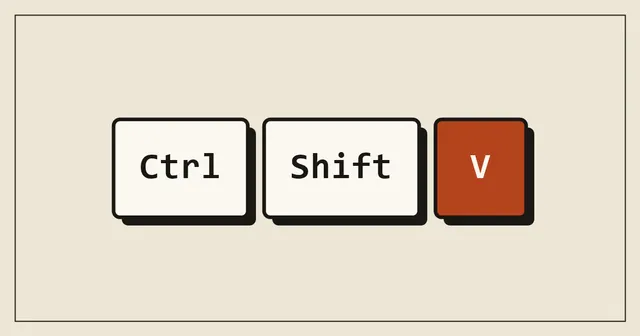
To paste only the values in Google Sheets, copy the cells as usual with Ctrl + C and paste with Ctrl + Shift + V instead of Ctrl + V. On a Mac it is Cmd + Shift + V. You get the numbers and text you see on screen, without the formulas behind them and without the source formatting.
Quick reference
| What you want | Windows / ChromeOS | Mac |
|---|---|---|
| Paste values only | Ctrl + Shift + V | Cmd + Shift + V |
| Normal paste (values, formulas and formatting) | Ctrl + V | Cmd + V |
| Paste format only | Ctrl + Alt + V | Cmd + Option + V |
| Clear formatting from a selection | Ctrl + \ | Cmd + \ |
When you need it
Keeping the result of a formula. A cell with =SUM(B2:B20) shows a total. Paste it normally somewhere else and Sheets adjusts the formula to the new position, which often gives a wrong number or an error. Paste values only, and you get the total as a plain number that will not change.
Freezing numbers that would otherwise update. Formulas like =TODAY(), =NOW() or =RAND() recalculate. Copy the cell and paste values only on top of itself to turn the current result into a fixed value.
Cleaning text copied from a website or an email. Pasted text often brings its own font, colour and background. Values only drops all of that and the text takes the formatting of the cell you paste into.
Copying between files. Formulas that point to other tabs or use IMPORTRANGE can break in a different file. Values only copies what you see.
Paste values with the menu
- Copy the cells.
- Click where you want to paste.
- Open Edit, then Paste special, then Values only.
The same Paste special submenu also appears when you right-click a cell. In the right-click menu it is under Paste special.
The other Paste special options
| Option | What it pastes |
|---|---|
| Values only | The visible results, no formulas and no formatting |
| Format only | Colours, fonts, borders and number formats, no content |
| Formula only | The formulas, without the source formatting |
| Conditional formatting only | Just the conditional formatting rules |
| Data validation only | Dropdowns and checkboxes rules, without the content |
| Transposed | The copied block turned on its side: rows become columns |
| Column widths only | The widths of the copied columns |
| All except borders | Everything except the cell borders |
Transposed is the one people search for most after values only. Copy a row, choose Paste special, Transposed, and it lands as a column.
Turn formulas into values in place
To replace a column of formulas with their results, without moving anything:
- Select the cells with formulas.
- Press Ctrl + C.
- Without clicking anywhere else, press Ctrl + Shift + V.
The formulas are gone and the values stay. Do this on a copy of the sheet first if other formulas depend on these cells.
Why Ctrl + Shift + V does not work
- You copied from outside Sheets. When you copy from a website or another program, Sheets receives the text from your system clipboard. Ctrl + Shift + V still pastes plain text, but there is no formula to drop, so it looks the same as a normal paste.
- The browser blocks clipboard access. If you use the Edit menu instead of the keyboard, Chrome may ask for permission to see the clipboard. Allow it once and the menu works; the keyboard shortcuts work without this permission.
- An extension uses the same keys. Some clipboard managers take over Ctrl + Shift + V. Test in an Incognito window to check.
The same shortcut in other apps
Ctrl + Shift + V means "paste without formatting" in many apps: Google Docs, Gmail, Chrome text boxes and recent versions of Microsoft Word. In Excel on Windows it is different: paste values there with Ctrl + Alt + V, then V and Enter. Our Word shortcuts guide covers pasting plain text in Word.
Common questions
Does paste values keep number formats like currency or dates?
No. Values only drops all formatting, including number formats, so a date can show as a number such as 46335. Use Format, Number to set it back, or paste the format separately with Ctrl + Alt + V.
Can I undo a paste values?
Yes, Ctrl + Z undoes it like any other change, and File, Version history keeps older versions if you notice later.
Is there a paste values button in the Sheets app on my phone?
Yes. Copy the cells, tap the cell where you want them, tap it again to open the menu, and choose Paste special, then Values only.
More Sheets time-savers, including fill range with Ctrl + Enter, are in our Google Sheets shortcuts cheat sheet.
Written by
The Applio team
We build booking software for appointment-based businesses: the Applio platform and the BarberSamir app on the App Store. We write about the tools and habits that save us time. More about us
Keep reading
Shortcuts
Flash Fill in Excel: Ctrl + E splits names, emails and dates for you
Type one example, press Ctrl + E, and Excel fills the rest of the column. How to use Flash Fill to split names, join columns, pull out parts of emails and reformat phone numbers, and what to do when it does not work.
· 6 min read
Shortcuts
Strikethrough in Google Sheets: the shortcut and three other ways
Strikethrough in Google Sheets is Alt + Shift + 5 on Windows and Cmd + Shift + X on a Mac. Here is how to apply it to cells or part of a cell, remove it, and cross out rows automatically.
· 5 min read
Shortcuts
Excel shortcut to insert a row (and delete one) on Windows and Mac
Insert a row in Excel with Shift + Space, then Ctrl + Shift + +. Delete one with Ctrl + -. Mac keys, inserting several rows at once, and what to do when the shortcut opens a dialog instead.
· 4 min read