How to reopen a closed tab in Chrome (and a closed window)
Press Ctrl + Shift + T to reopen the last closed tab in Chrome (Cmd + Shift + T on a Mac). Press it again for older tabs, reopen whole windows and tab groups, and find tabs from days ago in History.
By The Applio team4 min read
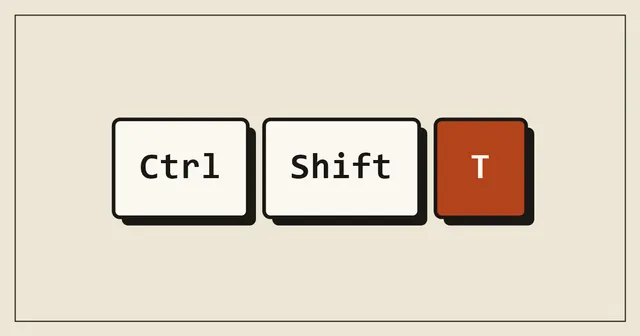
To bring back a tab you just closed in Google Chrome, press Ctrl + Shift + T on Windows, ChromeOS or Linux, or Cmd + Shift + T on a Mac. The tab comes back in its old position, with its back button history, so you can still go back to the pages you visited in it. Press the shortcut again to reopen the tab you closed before that, and so on.
Quick reference
| What you want | Windows / ChromeOS | Mac |
|---|---|---|
| Reopen the last closed tab or window | Ctrl + Shift + T | Cmd + Shift + T |
| Open History | Ctrl + H | Cmd + Y |
| Search your open tabs | Ctrl + Shift + A | Cmd + Shift + A |
| Close the current tab | Ctrl + W | Cmd + W |
Reopen several tabs
Chrome keeps a list of what you closed, newest first. Each press of Ctrl + Shift + T brings back the next one. If you closed five tabs by mistake, press it five times.
If the last thing you closed was a whole window, the shortcut reopens the whole window with all of its tabs. The same goes for a tab group you closed: it comes back as a group.
Reopen a tab with the mouse
- Right-click an empty part of the tab strip (the space next to your tabs) and choose Reopen closed tab. The menu says Reopen closed window if a window is next in line.
- Or open the Chrome menu (the three dots), point to History, and look under Recently closed. This list shows several tabs and windows at once, so you can pick a specific one instead of going back in order.
Find a tab you closed days ago
Ctrl + Shift + T only goes back through the current browsing session. For anything older, use History:
- Press Ctrl + H (Mac: Cmd + Y).
- Type a word from the page title or the site name in Search history at the top.
- Click the result.
If you use Chrome on several devices with the same Google account and sync turned on, the Tabs from other devices section of History shows tabs that are open on your phone or another computer.
Get all your tabs back after Chrome closes or crashes
When Chrome closes unexpectedly, it usually offers a Restore button the next time you open it. If you closed it on purpose and want your tabs back, press Ctrl + Shift + T right after starting Chrome: the first press restores the last window you closed, with all its tabs.
To stop this from happening at all, make Chrome reopen your tabs every time:
- Open Chrome settings (three dots, Settings).
- Go to On start-up.
- Choose Continue where you left off.
Why the shortcut sometimes does nothing
- You are in an Incognito window. Chrome does not keep a history of Incognito tabs, so there is nothing to reopen once the Incognito window is closed. Within an open Incognito window, the shortcut still brings back tabs closed in that window.
- The list of closed tabs was lost. After some restarts, for example when Chrome updates itself, the list can be empty. Use History instead.
- Another program uses the same shortcut. Some screen recorders and terminal apps use Ctrl + Shift + T. Check whether the shortcut works in a new Chrome window with nothing else running.
The same shortcut in other browsers
Ctrl + Shift + T reopens closed tabs in Microsoft Edge, Firefox, Brave and Opera too. In Safari on a Mac it is Cmd + Shift + T, or History, Reopen Last Closed Tab.
Common questions
Does Ctrl + Shift + T restore what I typed in a form?
Sometimes. Chrome tries to restore form contents for some pages, but many sites clear their forms when the page reloads. Do not rely on it for long text; copy it somewhere first.
Can I reopen a tab on my phone?
In Chrome on Android and iPhone, open the tab switcher (the square with a number) and tap Undo right after closing a tab. Later, use the three dots menu, Recent tabs, to see recently closed tabs.
How do I find a tab that is still open but lost among dozens of others?
Press Ctrl + Shift + A (Mac: Cmd + Shift + A) to search your open tabs by title, then press Enter to jump to it. This and other tab tricks are in our Chrome shortcuts and hidden tricks guide.
Written by
The Applio team
We build booking software for appointment-based businesses: the Applio platform and the BarberSamir app on the App Store. We write about the tools and habits that save us time. More about us
Keep reading
Shortcuts
Flash Fill in Excel: Ctrl + E splits names, emails and dates for you
Type one example, press Ctrl + E, and Excel fills the rest of the column. How to use Flash Fill to split names, join columns, pull out parts of emails and reformat phone numbers, and what to do when it does not work.
· 6 min read
Shortcuts
Strikethrough in Google Sheets: the shortcut and three other ways
Strikethrough in Google Sheets is Alt + Shift + 5 on Windows and Cmd + Shift + X on a Mac. Here is how to apply it to cells or part of a cell, remove it, and cross out rows automatically.
· 5 min read
Shortcuts
Excel shortcut to insert a row (and delete one) on Windows and Mac
Insert a row in Excel with Shift + Space, then Ctrl + Shift + +. Delete one with Ctrl + -. Mac keys, inserting several rows at once, and what to do when the shortcut opens a dialog instead.
· 4 min read