How to lock your Mac screen: the shortcut and four other ways
Lock a Mac instantly with Control + Command + Q. Plus the Apple menu, Touch ID, Hot Corners and the settings that make your Mac lock itself when you walk away.
By The Applio team3 min read
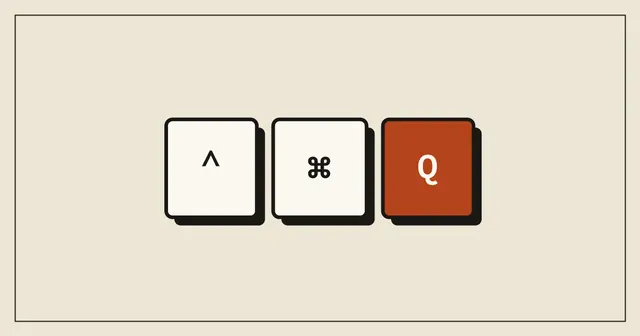
The quickest way to lock a Mac is Control + Command + Q. The screen goes straight to the login window, your apps keep running in the background, and nobody can see or use them until you sign back in with your password or Touch ID. It is the Mac equivalent of Win + L on Windows.
Quick reference
| What you want | How |
|---|---|
| Lock the screen | Control + Command + Q |
| Lock from the menu | Apple menu, Lock Screen |
| Lock with Touch ID | Press the Touch ID button once, on Macs that have one |
| Turn off the display (locks if a password is required) | Control + Shift + Power, or Control + Shift + Eject on older keyboards |
| Log out completely | Shift + Command + Q |
Be careful with the last one. Shift + Command + Q logs you out, which closes your apps, while Control + Command + Q only locks the screen.
Method 1: Control + Command + Q
Press all three keys together. The login screen appears immediately. This works in any app and on any Mac running macOS High Sierra or later.
If nothing happens, check System Settings, Keyboard, Keyboard Shortcuts for an app or custom shortcut that uses the same keys.
Method 2: the Apple menu
Click the Apple logo in the top-left corner and choose Lock Screen. Useful when you are already using the mouse or trackpad, or when you are on a keyboard that is not your own.
Method 3: the Touch ID button
On MacBooks and Magic Keyboards with Touch ID, a single press of the Touch ID button locks the screen. Press and hold it to turn the Mac off instead, so a short tap is what you want.
Method 4: a Hot Corner
You can lock the Mac by moving the pointer into a corner of the screen:
- Open System Settings, Desktop & Dock.
- Scroll down and click Hot Corners.
- Pick a corner and choose Lock Screen.
Now flicking the pointer into that corner locks the Mac. Choose a corner you do not use for anything else, or you will lock it by accident.
Make the Mac lock itself when you walk away
Locking by hand only helps if you remember to do it. Set the Mac to lock on its own:
- Open System Settings, Lock Screen.
- Set the screen saver and the display-off options to a short time, such as 5 minutes. On a MacBook there are separate display-off settings for battery and power adapter.
- Set Require password after screen saver begins or display is turned off to Immediately.
With these settings, an unattended Mac locks itself after a few minutes. On an Apple Watch, you can also turn on unlocking with the watch under Touch ID & Password (or Login Password on Macs without Touch ID), which makes a strict setting easier to live with.
Lock vs sleep vs log out
| Apps keep running | Needs a password to return | Uses battery | |
|---|---|---|---|
| Lock screen | Yes | Yes | As normal |
| Sleep | Paused | Yes, if set to require it | Very little |
| Log out | No, apps close | Yes | As normal |
Locking is the right choice for a short break at work or in a café: everything stays exactly where you left it.
Common questions
Is there a lock shortcut on a Windows keyboard connected to a Mac?
Yes, the keys are in different places. Control is the Ctrl key and Command is usually the Windows key, so press Ctrl + Win + Q.
Does locking stop downloads or music?
No. Downloads, uploads, music and anything else running in the background keep going while the screen is locked.
How do I lock my iPhone or iPad?
Press the side button (or the top button on iPads without a Home button). Our Mac shortcuts cheat sheet lists 55 more Mac shortcuts, with a printable PDF.
Written by
The Applio team
We build booking software for appointment-based businesses: the Applio platform and the BarberSamir app on the App Store. We write about the tools and habits that save us time. More about us
Keep reading
Shortcuts
Flash Fill in Excel: Ctrl + E splits names, emails and dates for you
Type one example, press Ctrl + E, and Excel fills the rest of the column. How to use Flash Fill to split names, join columns, pull out parts of emails and reformat phone numbers, and what to do when it does not work.
· 6 min read
Shortcuts
Strikethrough in Google Sheets: the shortcut and three other ways
Strikethrough in Google Sheets is Alt + Shift + 5 on Windows and Cmd + Shift + X on a Mac. Here is how to apply it to cells or part of a cell, remove it, and cross out rows automatically.
· 5 min read
Shortcuts
Excel shortcut to insert a row (and delete one) on Windows and Mac
Insert a row in Excel with Shift + Space, then Ctrl + Shift + +. Delete one with Ctrl + -. Mac keys, inserting several rows at once, and what to do when the shortcut opens a dialog instead.
· 4 min read